



4 QuickBooks Online settings groups you should explore

Guidance You Can Count On

Our Insights

  • #
    Back to Insights

QuickBooks Online can boost your profitability—if you take full advantage of some of its more effective tools.

We like QuickBooks Online for a lot of reasons. It’s designed for small business owners, not accountants, so its language and processes are understandable. It offers all the tools you need to manage your income and expenses. It provides tools for tracking inventory, creating projects, and running payroll. It generates reports. Plus, it’s highly customizable, so no matter what kind of business you own, you can make it work for you

QuickBooks Online’s bookkeeping capabilities can ensure that you get the numbers right, but its benefits go beyond that. Many of its tools can actually help you make changes to improve your company’s profitability if you commit to using them regularly. Try incorporating these five features into your regular workflow for three months and see how they can:

1. Improve Customer Relationships

Your customers are good, and it’s often well-worth your time to cultivate good, long-lasting relationships with them. If you haven’t seen their name on an invoice for a while, send them a friendly, personalized email offering a one-time discount. Or tell them about new products and/or services that they might like. And don’t neglect your best customers. Let them know occasionally that you appreciate their business by sending them a freebie.

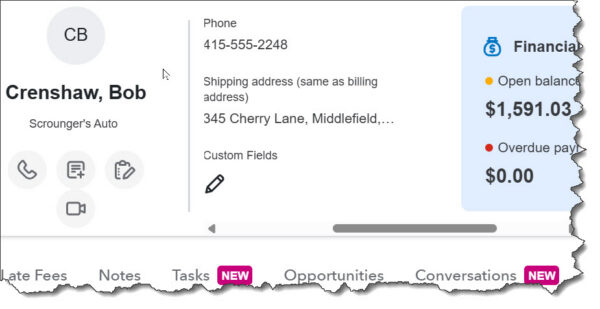
QuickBooks Online provides exceptionally detailed customer records that can give you quick insight into your customers’ history, their current status, and future opportunities. Beyond basic contact information, customer records offer comprehensive transaction lists and activity feeds that document your interaction with them. You can take notes and assign tasks, browse projects you’ve done for them, and see their current open balance and any missing payments. Connect Gmail or Outlook to QuickBooks Online, and you’ll be able to store conversations with them right in their records. You’ll find customer records by clicking the Home button in the toolbar, then Customer Hub, then Customers & Leads.

Sales by Customer

Maintain your customer records diligently, and QuickBooks Online can serve as a customer relationship manager (CRM). The Sales by Customer report can be a big help here.

2. Help Maintain Smart Inventory Levels

If you sell products, you know what a balancing act inventory management can be. Carry too much and you may be tying up more money than you need to. Cut your levels too close, and you risk not being able to fulfill some orders – and maybe even losing customers.

QuickBooks Online can help you track your inventory so you can minimize those problems. You’ll know instantly when you go to the inventory home page which stock levels are low, what your best sellers are, and whether there are any open sales orders or purchase orders. Inventory records provide details about each item. They also tell you what the quantity on hand is and whether any are on purchase order or sales order, as well as the reorder point that you set. Reports that are helpful here include Inventory Valuation Summary/Detail and Sales by Product/Service Summary and Detail.

To see inventory pages in QuickBooks Online, click All apps in the toolbar, then Inventory.

3. Accelerate Customer Payments

This is probably the most formidable problem that small businesses face. How do you get your customers to pay on time? You can, for example:

  • Charge late fees.
  • Decrease the number of days until the due date.
  • Offer a small discount for early payment.

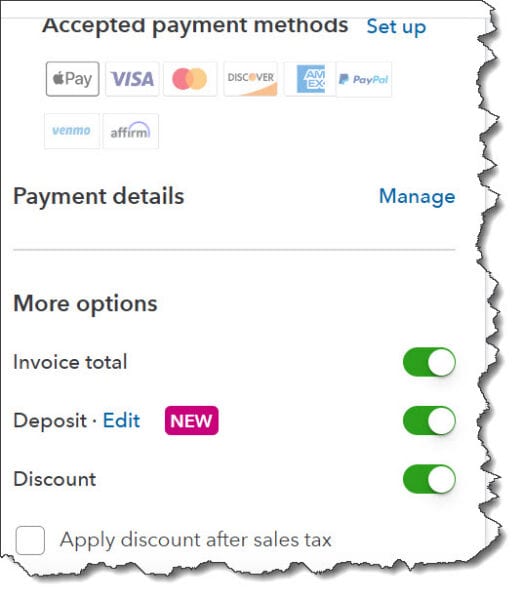
Probably the best way to encourage timely remittances is to allow customers to pay electronically. You’ll need to set up a merchant account through QuickBooks Payments. Customers will be able to pay directly through an invoice, on site or in a store, or digitally (ACH and credit/debit cards, Apple Pay, PayPal, Venmo, etc.). Transaction fees will apply.

Payment methods

You can speed up payments by giving customers more convenient, faster options.

4. Improve Your Cash Flow

It all comes down to how much is coming in vs how much is going out. Keeping a close watch on your cash flow is critical. Positive cash flow is not the same thing as profitability, but the two are, of course, closely related. QuickBooks Online provides ways for you to monitor this. Click the Home button in the toolbar and scroll down until you see the Cash Flow graph. This will give you a quick look at todays and your historical cash flow. If this snapshot doesn’t mean anything to you (and it may not; it’s pretty simple), we can analyze your situation by running and analyzing QuickBooks Online’s report, Statement of Cash Flows.

5. Keep Track of Your Digital Paperwork

How do you keep track of what invoices have been paid? You can always run a report that you should be running regularly: Accounts Receivable Aging Summary. This will spell out who owes you money and who is late sending it in. Though you can customize this report, the default view will show you a list of customers’ (and related jobs’) names with six additional columns showing whether they’re up to date or a certain number of days (by range) late: Current, 1-30, 31-60, 61-90, 91 and over, and Total.

You can also see a visual of your outstanding customer payments. Click Home, then Sales & Get Paid, then Sales transactions. Colored bars at the top of this page show you how much money is tied up in Estimates, Unbilled income, Overdue invoices, Open invoices and credits, and Recently paid. Click on any bar to see a list of related transactions below.

Final Thoughts

QuickBooks Online can, in many small ways, help you achieve profitability, but it takes diligence on your part. If you’re not already taking these five steps regularly, try to work them into your accounting workflow. Taken together, along with the other things you do to get profitable and stay profitable, you should see your smart use of QuickBooks Online pay off. If you have questions, please reach out to our QuickBooks team to learn more.

Reminder

Don’t forget that QuickBooks Desktop will be sunsetting in May of 2027, making now an important time to switch over to QuickBooks Online if you haven’t already. Please reach out to us to schedule a consultation to learn more.
 

Sign Up for our Monthly QuickBooks Newsletter

Get the latest updates delivered straight to your inbox!

You have more control over QuickBooks Online than you might think. Consider changing some settings.

QuickBooks Online comes equipped with a lot of default content. It provides forms like invoices and statements that are already formatted with their own fields and layouts, ready to bring in your company’s data. Reports have default columns and rows. Contact and product records have a standard structure, as do timesheets.

The site is designed to meet the needs of “average” small businesses. So, some companies might be able to use it without ever making any changes to their operations. The more likely scenario is that, at some point, you’re going to want to modify the content and/or layout of a particular function.

So, QuickBooks Online has settings that you can change. Whether you’re new to the application or you’ve been using it for years, you should explore these options carefully. You might be surprised by the modifications that are possible. You might also be pleased to learn about features you never knew about.

Core Settings

Opening your settings pages is easy. Click the gear icon in the upper right corner and select Account and Settings in the upper left. You’ll find that you already supplied some information to QuickBooks Online when you went through the setup process, like the details that appear when you click Company in the toolbar on the left side of the page. You can always make changes here if necessary.

Sales Settings

We’re going to focus, though, on four types of settings. The first are displayed when you click the Sales tab. You’ll see there are several sub-tabs here related to different types of sales settings. As you work through them, click the pencil icon off to the right when you want to make changes. Be sure to click Save when you’re done with each section and Done in the lower right when you’re finished.

Here's what we recommend you pay special attention to here.

September 2025 Image 1

These are your options when you want to modify QuickBooks Online’s Sales form content.

Sales form content. You can change the look and content of your sales forms, like estimates and sales receipts. Here, you’re basically turning fields on and off, like Deposits. You can also see where to go to add custom fields.

Products and services. We assume you’d want Product and Service columns on sales forms, but do you also want an SKU column? Will you be tracking Inventory?

Late fees. Did you know QuickBooks Online will calculate these for you and include them on overdue invoices? You can customize these for individual customers. Let us know if you want help making this decision and setting up the late fees.

Reminders. You can automate invoice reminders and write a default email message to go with them.

Expenses

QuickBooks Online doesn’t have as many settings options for accounts payable, but you might learn that it has features you didn’t know about. For example, you can:

  • Create purchase orders,
  • Display an item's table on expense and purchase forms,
  • Use tags,
  • Establish default bill payment terms, and,
  • Designate items and expenses as billable and set a default markup rate.

QuickBooks Online also supports online Bill Pay, which can save a lot of time, reduce errors, and help ensure that your payables are dispatched in time to meet their due dates. You can upload bills, schedule payments, and manage user approvals through this service.  There are extra charges for this, of course. If you want help getting started, let us know.

Time Tracking Settings

If your company sells services, you’ll want to set up QuickBooks Online so you can track time. You may also want to use the site’s tools to track employee work hours. This can be complicated, especially if you’re going to allow employees to track their own time. You have many settings to consider here, including:

Timesheet management - You’ll need to indicate whether, for example, team members can create and edit their timesheets. Do you want to round up clock-in and clock-out times?

Timesheet fields - What fields should be on the timesheets (service items, billable status and rates, location, etc.)?

Manage kiosk - Will you be setting up a computer or laptop to serve as an employee time clock?

Notifications - You can send reminders when, for example, time is adjusted or notes are added.

September 2025 Figure 2

Timesheet management settings

Advanced Settings

Again, you may have indicated some of these preferences during setup. But it's a good idea to check them to make sure they’re accurate, because they’re very important building blocks of your QuickBooks Online company file. Changing them should be done thoughtfully. Please ask us if you’re unsure of any of these.  Here are some examples.

  • What is your company’s accounting method (cash or accrual)?
  • What are the first months of your fiscal and tax years?
  • Do you want to “close” your books?
  • What is your company’s business structure (sole proprietor, corporation, LLC, etc.)?
  • Do you want to number the accounts in your Chart of Accounts?
     

We know we’ve suggested several times in this column that you should contact us with questions. And clearly, many of these are decisions you can make on your own. But we do hope you’ll consult with us if you’re at all unsure of what to do – especially where Advanced Settings are concerned. And we’re always available to address any other QuickBooks Online concerns you have.

BE SURE TO SIGN UP FOR OUR MONTHLY QUICKBOOKS NEWSLETTER FOR THE LATEST UPDATES:
 

Subscribe Here

Talk to an Expert

Get personalized guidance for your situation.

Recent Insights

Ready to Take the Next Step?

Our team is here to provide guidance you can count on.