It’s one of the more unpleasant parts of your work, but QuickBooks Online can help you collect past-due invoices.
One of the most common problems small businesses face is cash flow—and one of the biggest reasons cash flow is a problem is because customers don’t send in payments on their invoices quickly.
If you bill customers by sending invoices, you’ll find that QuickBooks Online has automated tools that can help you bring in those tardy payments. You may still have to initiate personal contact with customers in some cases, but you’ll have options short of that that may solve the problem.
This month, we’ll describe the features that can help you tackle your accounts receivable and help improve your company’s cash flow. We’ll also provide some tips for engaging customers who are seriously late in settling invoices and/or who have a sizable balance due.
Identify Past-Due Payments
Of course, you first need to know who is in arrears. Hover your mouse over Reports in the toolbar and click Standard reports. Under Who owes you, click Accounts receivable aging summary. This report will tell you what the unpaid balances are for each customer, grouped by days past due. There are individual columns for 1-30 days late, 31-60, 61-90, and 91 and over. Here are our suggestions on how to handle each.
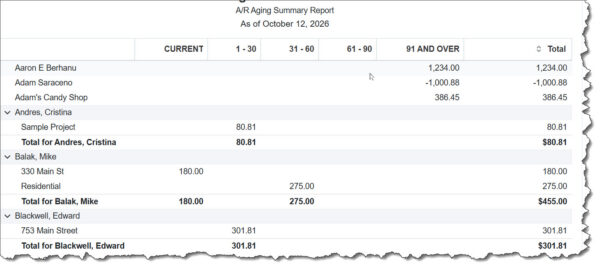
The A/R Aging Summary Report shows you quickly who’s behind, and by how much.
1-30 Days Late: Send Reminders
These customers are late with their invoice payments, but not by much. Unless a specific customer has an especially large balance (more on that later), we recommend you send them payment reminders. In the toolbar, click Home, then Sales & Get Paid, then Invoices. Click Overdue in the colored bar at the top to open the corresponding list. Click the drop-down arrow in the Action column and then click Send reminder.
The next page displays details about the customer and the invoice, along with suggested text for an email, which you can edit. You can also choose the tone of the message from several AI-generated options: Humorous, Friendly, Formal, Serious, and Stern. When you’re satisfied with the draft, click Send reminder.
31-60 Days Late: Send Statements
There are numerous reasons why customers don’t pay an invoice right away. They may not have received it, or they did and it got lost in a pile of papers or a crowded email inbox. If they’re paying by check, they may have put it off because it’s such a pain to find an envelope and a stamp. You can avoid this last stumbling block by accepting credit cards and bank payments. We can help you get started with this.
Another common reason is that they may think they’ve already paid it. Customer statements can be an effective way to show people what they’ve been billed for and what they’ve paid. In the upper left corner of QuickBooks Online, click the circled + (plus) sign and select Statement. Make sure the Statement date is the day you want to generate the statement, and that you select the correct Customer balance status, Start date, and End date if that information is needed for Statement type you choose (there are three options).
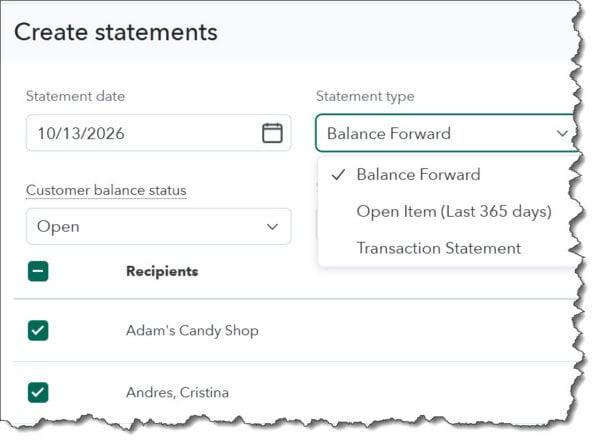
Before you create a customer statement, be sure to complete all the fields at the top of the page.
QuickBooks Online uses the 31-60 days late range here. We suggest you don’t wait that long. Give the customers a few days or a week (depending on their payment history) to respond to your email reminders, then send statements.
61-90 Days Late: Contact Customers Personally
Again, we recommend that you proceed with this step a few days to a week after you’ve sent a statement. Don’t wait until it’s 90 days late. If a customer has an unusually large balance and hasn’t been in touch with you to arrange payment, it may be best to skip to this step a few days after you send an email reminder, especially if it’s a new customer. Start with an email, and progress to a phone call if that doesn’t work.
Approach them carefully. It’s best not to assume they just blew off your invoice. First, verify that they received it and know what the due date was. If they did, ask if they’re having a problem submitting payment. Offer to set up a payment plan if you can.
Last Resort: Consider Third-Party Collection Help
This is a decision you’ll have to make, based on the amount of the outstanding balance and your relationship with the customer. You can always write it off as a bad debt and never again accept an order from the customer.
Looking to the Future
If you’ve had a bad experience with a customer but they eventually paid up and want to order again, QuickBooks Online offers two options on its invoice forms that you might want to consider. You could ask for a deposit upfront if it’s over a dollar amount that you determine, or you could offer a small discount for paying early.
Poor cash flow may be an ongoing problem for you, and it may be due to more than customers paying late. If you’d like more information about how QuickBooks Online can help you identify cash flow difficulties and make better business decisions, our QuickBooks team is here to help. Contact us to get started.
Reminder
Don’t forget that QuickBooks Desktop will be sunsetting in May of 2027, making now an important time to switch over to QuickBooks Online if you haven’t already. Please reach out to us to schedule a consultation to learn more.
Sign Up for our Monthly QuickBooks Newsletter
Get the latest updates delivered straight to your inbox!