Recent News & Blog / 10 Tips for More Effective Budgeting with QuickBooks Online

June 1, 2026
You may not enjoy creating budgets, but QuickBooks Online nails the mechanics for you.
Budgeting is more art than science. You have to be able to make predictions about so many variables, many of which won’t become reality for several months. It’s important to go through the process so you can use your budget as one of the tools you employ for gauging your company’s financial progress.
QuickBooks Online can’t predict the future (though it does offer powerful cash flow forecasting tools), but it can automate the nuts and bolts of budgeting so you can focus on the document’s content instead of wrestling with paper or Excel. The site has a special framework that’s designed solely for budgets. It automates some of the repetitive work that budgets often require and makes it easy to do adjustments as needed.
This month, we’ll take a brief look at how to start working on a budget in QuickBooks Online. We’ll also pass along ten tips that may help you when you’re going through the process.
Using the Budget Framework
To get to QuickBooks Online’s budgeting tools, hover your mouse over Reports in the toolbar on the left, then click Financial Planning | Budgets. Click Create budget in the upper right corner. For Budget type, click the button in front of Profit and loss. This is the simplest and most commonly used option. You’ll plan your budget around anticipated income and expenses over a specific period of time.
Select the Period you want by clicking the down arrow next to that field. For Budget format, select Consolidated. This means your budget will address income and expenses for your business as a whole rather than creating individual budgets based on location, class, department, or customer.
If you’ve already been using QuickBooks Online so you have a lot of data entered, you can opt to Pre-fill data from a past period so you have real-life income and expenses to use as a model. If you decide to do this, select the period you want from the drop-down list. You can also create Custom budgets or Import budgets. We won’t use pre-filled data here, but if you’re interested, contact us to schedule a training session. We’re going to create a budget from scratch, so click Custom budgets. When you’re finished here, click Next.
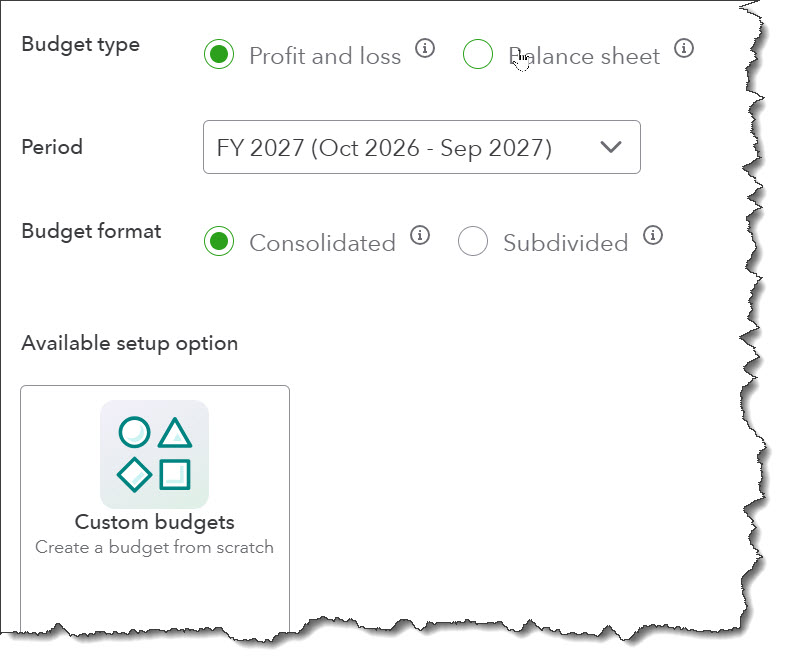
QuickBooks Online offers options for setting up your budget, including starting from scratch.
The page that opens next will look familiar to you if you’ve ever worked with a budget. Each row displays an account from your company’s Chart of Accounts. Columns contain individual time blocks. The default is Monthly, but you can change this to Yearly or Quarterly (upper right of the page). You can also change the name of the budget by clicking the pencil icon in the upper left.
There are two ways to enter numbers. You can enter an annual total in the Budget totals column and let QuickBooks Online divide it evenly into monthly totals. If your monthly number is going to remain the same all year, you can enter it in the first column and click the icon to repeat it for every other time block in that row. You should make sure that Autosave is on, so you don’t lose any work. Click the gear icon in the upper right and make sure Autosave budget is checked. But always Save manually when you’ve finished a work session (lower right corner).
10 Budget Tips
Don’t sweat your first pass through your budget, though certainly you should make a very thoughtful effort to estimate your income and expenses as carefully as you can. Your budget is a work in progress, and it will go through numerous revisions, especially in its first year. Even if you haven’t been tracking your finances in QuickBooks Online for 12 months, you’ve certainly used other ways to track your income and your purchases. Take advantage of the knowledge you have about your company’s financials as you build a budget from scratch.
Here are ten suggestions we have for how to think about your budget as you attempt to make it as realistic and workable as you can.
1. Overestimate expenses, underestimate income.
If you’ve ever done a budget before, you’ve probably had to “borrow” from one account so you have enough to satisfy another. That will happen, but you want to minimize it. Be conservative when you’re estimating your anticipated income and leave enough room for purchases you must make.
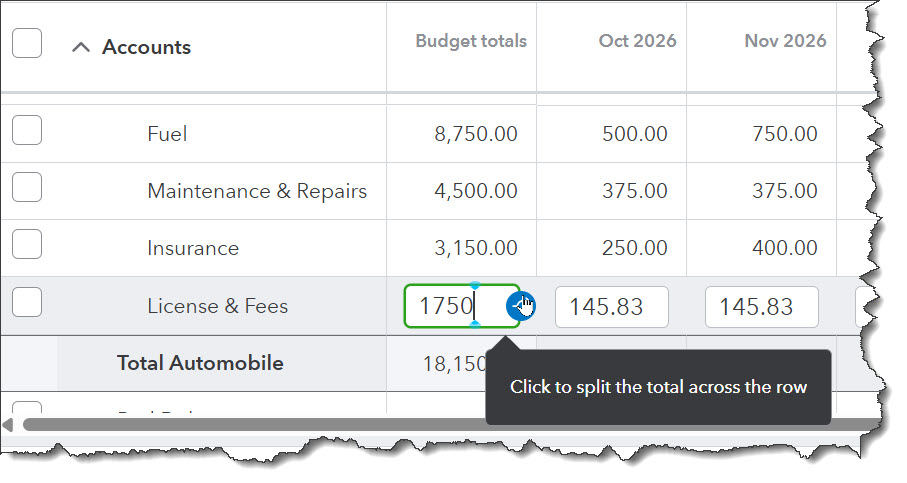
You might want to add a little extra to expense categories that can be variable.
2. Consider your sales cycle.
As easy as it is to automate budget amounts, think about your sales cycle if you’re a seasonal business, for example, and budget accordingly.
3. Don’t overcomplicate your budget with small items.
Maybe you do go through a lot of paper clips and rubber bands. But don’t micromanage your budget. Group related small items as much as you can or your reports will be unwieldy.
4. Leave room for expense overruns.
You probably have an emergency fund in your personal budget. Do the same with your company’s budget. Build it into an existing account.
5. Budget the essentials first.
Just as you would with a home budget, acknowledge the difference between must-haves and nice-to-haves. Don’t build up a wish list until you’ve budgeted for your company’s basic needs.
6. Work on your debt with extra dollars.
If you find that your projected income is outweighing your expenses, consider using those funds to pay down outstanding payables. Debt costs money.
7. Get input from employees.
If you have people working for you, bring them into the process, especially if they have more knowledge than you in specific areas.
8. Learn from QuickBooks Online’s budget reports.
QuickBooks Online offers reports that specifically target budget issues: Budget Overview and Budget vs. Actuals. Look at them at least once a month.
9. Take what you’ve learned about costs and try to reduce them.
If it seems like you’re spending too much money on specific items, do some research and see if you can find a more affordable supplier that offers the same quality.
10. Stay in touch with your budget.
Revisit it frequently and make adjustments as needed. You’re building a model for future years.
Final Thoughts
If you have questions about any of the tips covered in this month’s article, please contact our team. We are happy to review or expand upon what was covered.
Reminder
Don’t forget that QuickBooks Desktop will be sunsetting in May of 2027, making now an important time to switch over to QuickBooks Online if you haven’t already. Please reach out to us to schedule a consultation to learn more.