Recent News & Blog / Navigating the New QuickBooks Online User Interface
January 30, 2026
Still struggling with QuickBooks Online’s new user interface? We’ll go over the most significant changes and offer some tips.
The QuickBooks Online upgrade that debuted late last fall contains probably the most significant set of interface and navigation changes that the website has ever seen. It’s been available long enough now that you’re probably able to get your accounting work done, but you may still be puzzled by the new version.
If this is the case you’re not alone. Many savvy users have even struggled with the changes. Fortunately, the site’s core accounting pages themselves were relatively untouched by the overhaul, but the opening page sure looks different.
Everything makes sense once you know where “everything” is, but your work may have been slowed down because it was difficult to find the old, familiar screens. This month, we’ll go over the most prominent UI changes and provide some tips that may help.
The Toolbar
The new left vertical toolbar has changed drastically over the last few months. The old New button in the upper left is now labeled Create. Hover your cursor over it, and it opens a list of transactions that you can click to create. There are also some links to housekeeping chores here, like Task and Add contractor.
You can now “bookmark” individual pages so you can find them easily without clicking multiple times. You can either do so by scrolling through the list provided when you click the Bookmarks icon in the toolbar or by designating them on some pages themselves. Below is an icon that will open the Home page. This is a fairly busy screen, so be sure to read everything and click links so you know how much work you can do from this screen.
Clicking Feed opens your Business Feed, which also appears at the top of the Home page. This is a list of actions you should take (like reviewing and sending income reminders) and insights provided by the site’s AI tools (like an automatic calculation of your recent profit or loss).
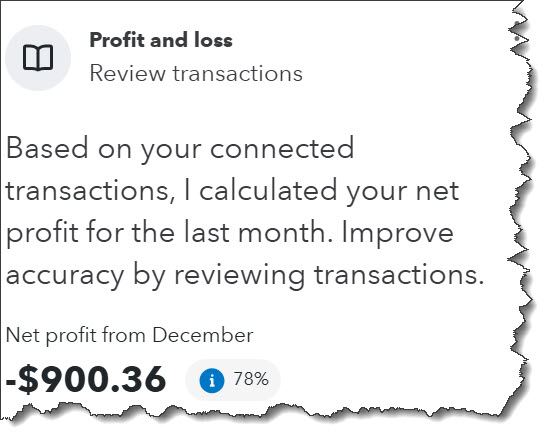
QuickBooks Online provides a personalized Business Feed that prompts you to take specific actions and provides insight.
Click the Reports icon to open the list of QuickBooks Online’s pre-formatted, customizable reports. And hover your cursor over All apps to open a directory of the site’s Apps (we’ll explain these next). The final icon in the new toolbar (Customize) opens a window containing your App menu. You can reorder them here and pin your favorites to the top. Don’t want to see the toolbar? Click Ctrl+period (.).
Apps
Apps are the navigation tools you used to see in the left vertical toolbar. They’re basically multi-level menus that contain your different tasks, transactions, and dashboards in specific areas, like Time, Accounting, and Projects. They’re sometimes referred to as hubs, or modules. Some of them appear at the top of the Home page, but you can see the complete list by hovering your cursor over All apps in the left vertical toolbar, like we just described.
QuickBooks Online has always offered more than one way to do the same thing, and that hasn’t changed with this upgrade. Some people like this flexibility, but it can be confusing to others.
We don’t find the Apps links at the top of the Home page as helpful as those in the All apps menus. You often have to scroll down far to find what you’re looking for when you use the Home page links. Hover over All apps and scroll to the hub you want, and you’ll see a list of all the sub-pages, rather than a lot of content you don’t necessarily want to see when you just want a list of customers, for example. Each hub is different, though. Some have action icons at the top of the page or activity shortcuts.
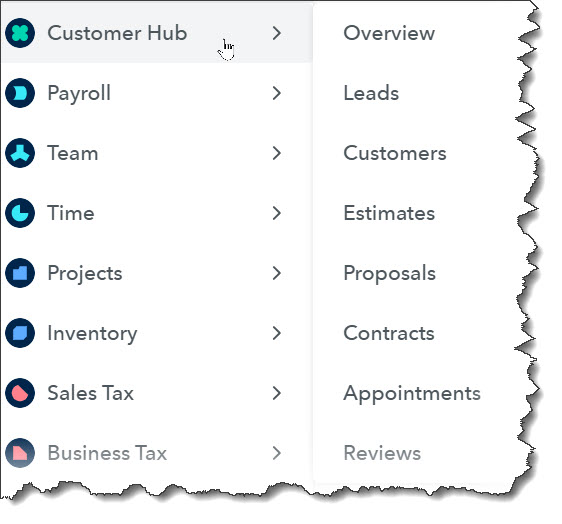
Hover over the All apps icon in the left vertical toolbar to see a list of tasks and content links for each App.
More Navigation Tools
If you’re looking for your old Integrations link, you’ll find it in the upper right corner. In the same row of icons, you’ll find other links that used to be elsewhere, including Tasks, Notifications, Settings, and Help.
Tips for Mastering the New User Interface
We realize that by now you’ve probably already found your way to your most-used screens, but there are ways to better use the new QuickBooks Online UI and develop a routine, so you automatically know where to find what you’re looking for. You also may not be taking advantage of the new AI help that’s built in. Here are some tips.
- Customize the Home page. Click Customize in the upper right and select/deselect “widgets” from the menu that opens. Click one to grab it and move it around if you’d like to rearrange the page.
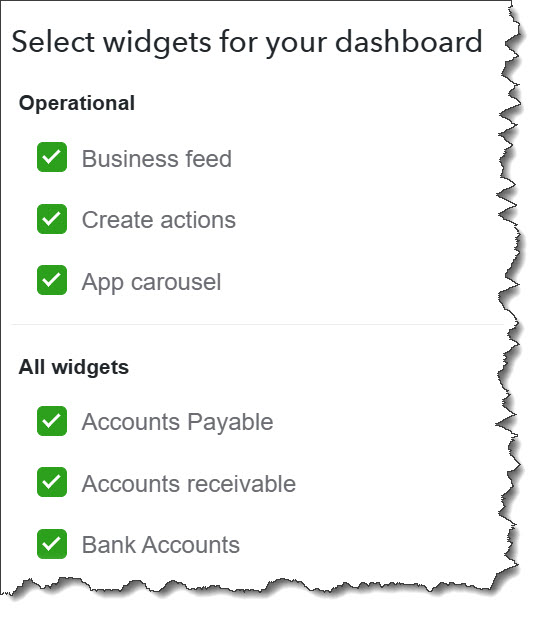
You can add or remove “widgets” on the Home page and rearrange them.
- Use “Insights” in reports. Once you’ve customized a report, click Insights to see what the Accounting Agent recommends.
- Look for AI-driven help in bank transactions. QuickBooks Online may make suggestions in your bank transactions register.
- Use keyboard shortcuts. If there’s ever been a time when keyboard shortcuts could come in handy, it’s now. Hold down Ctr+Alt+? to see the list.
- Define custom fields. They’ve replaced Tags. Click the gear icon in the upper right and select Custom fields under Lists.
- Find the audit log. It’s hidden. Open the Home page and scroll way down. In the lower right corner, you’ll see See all activity.
A new user interface can make you less confident in your ability to complete all your QuickBooks Online work. We’re here to help whether you have questions about the site’s new UI or about how the site handles your actual accounting.
Still using QuickBooks Desktop?
Don’t forget that QuickBooks Desktop will be sunsetting in May of 2027, making now an important time to switch over to QuickBooks Online if you haven’t already. Please reach out to us to schedule a consultation to learn more.