Recent News & Blog / Who Do You Owe? 5 Ways QuickBooks Online Helps You Pay Vendors
March 31, 2026
Neglecting your outstanding payables will wreak havoc with your company’s cash flow. Here’s how to use QuickBooks Online to stay current.
If you’re still tracking your company’s payables on paper, you know that it’s hard to keep up with your financial obligations. No matter how organized your calendar, to-do list, and neat stack of bills seem, slip ups can happen—which can spell trouble with your cash flow and your vendors.
You have a clear paper trail with bills, but how do you handle one-off expenses? For instance, if you stop at an office supply store to pick up some computer paper—which you’ll eventually claim as a business expense on your income taxes—you can save the receipt, and you can also comb through credit card and other bank statements to identify deductible purchases. This requires significant extra work—and it’s not even a foolproof system.
Using QuickBooks Online to track your payables and expenses saves time and helps to ensure that everything is recorded properly. It also makes it much easier and faster to look for payments you’ve made. Here’s how the site handles five types of payments.
Creating Vendor Records
QuickBooks Online allows you to add vendor records on the fly, in the process of creating transactions, but we recommend you set these up early on. You’re likely to include more details that you’ll need later. To get started, click Create in the upper left corner, then Add vendor under Vendors. (The Create button won’t work if you have an App or your list of Apps open. If it’s not opening the list of options, click the Home button in the toolbar to clear it.)
Tip: You can also import vendors from a list you’ve created in or imported into Google Sheets. QuickBooks Online explains how to do this and allows you to download a sample file.
A panel will slide out from the right that contains all the fields available for a vendor record. You don’t have to complete all of them. The Vendor display name is the only field that’s required but enter as much as you can now. You can always go back and add more information later. When you’re done, click Save.
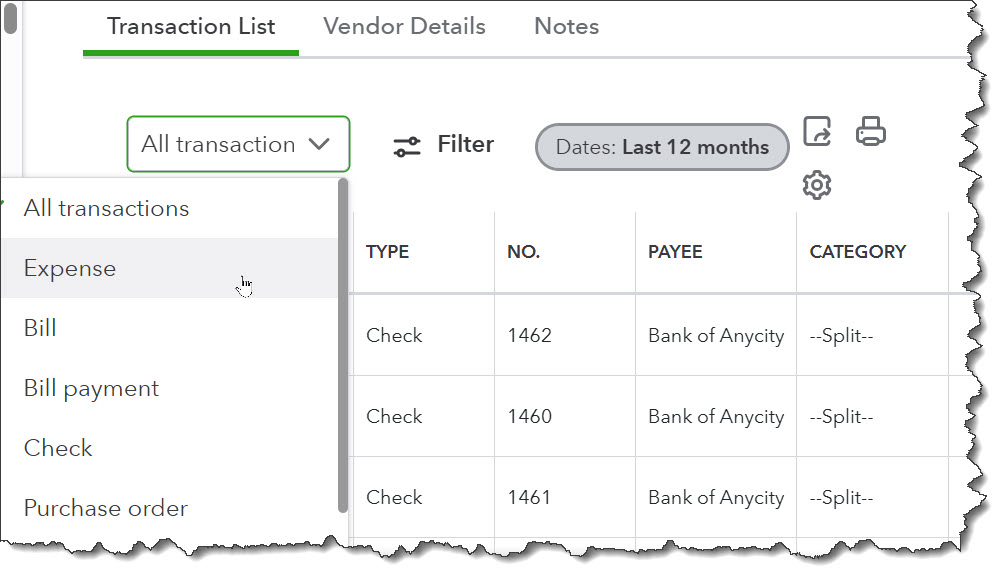
Once you’ve created a vendor record, you can view its details as well as any related transactions.
Documenting Expenses
You can manually enter the details of an expense by clicking Create in the upper left corner and then Expense under Vendors. If you’re trying to make better use of the new user interface and you want to see what your other options are there, click Home in the main toolbar, then click the Expenses & Pay Bills App at the top. In the corresponding list that appears to the left, select Expense transaction. Click New transaction in the upper right and select Expense. Complete the fields in the form that opens.
There are faster, easier ways to record expenses in QuickBooks Online. You can:
- Upload a file containing a scanned image of the receipt (PDF, PNG, JPEG, and HEIC are supported), or,
- Snap a photo using your smartphone’s camera and the QuickBooks Online mobile app.
QuickBooks Online will “read” the receipt and autofill as many fields as possible in a form on the site. The receipt image will be attached to it.
Dealing with Bills
The days of entering each bill’s details into QuickBooks Online are over. You can still manage your accounts payable that way, and you may be more comfortable writing checks or providing credit card numbers offline and just recording them and marking them as paid on the site. However, considering that Bill Pay Basic is now included in QuickBooks Online, you may want to move forward with automating your bill payments.
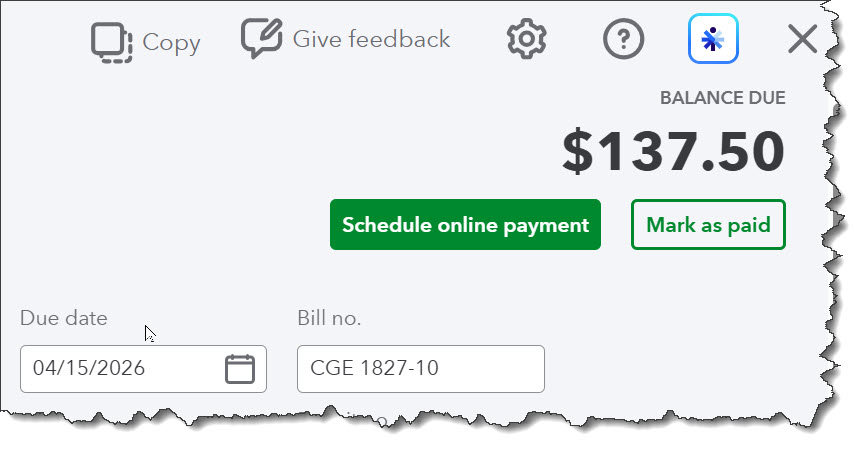
You can still pay bills manually and record them in QuickBooks Online, but you may want to consider automating your accounts payable.
Bill Pay Basic is a free, entry level service that allows you to pay bills via ACH (bank) payment or check through QuickBooks Online. Using this free version, you’re limited to five ACH payments per month. After that, you’ll pay a la carte prices. If you pay a lot of vendors regularly, you might consider upgrading to one of the two paid levels. Premium ($15 per month) allows 40 free ACH payments per month, and Elite ($90 per month) supports unlimited ACH payments. Bill Pay includes additional automation features, like instant or next-day payments and the ability to create pre-filled bills by forwarding emails.
To learn more and sign up, click the Home icon in the main toolbar, then Expenses & Pay Bills | Overview | Schedule online payment and follow the prompts.
Paying 1099 Contractors
Do you hire freelancers or independent contractors? You can pay them through QuickBooks Online if you have:
- A subscription to QuickBooks Payroll,
- A standalone add-on called QuickBooks Contractor Payments, or,
- A subscription to QuickBooks Bill Pay Premium or Elite.
Processing Vendor Credits
A vendor credit in QuickBooks Online is a transaction that records funds a vendor owes your business because items were returned or damaged, or you were overbilled. How you enter the refund depends on how you record purchases with the affected vendor. QuickBooks Online has a tool for processing vendor credits, but it’s very easy to make mistakes here that will adversely affect your bookkeeping. We strongly recommend you schedule an appointment with us if you need to deal with these transactions.
Managing Purchase Orders
Your vendors may not require these, but if they do, you can process them in QuickBooks Online. Click Create, then Vendors | Purchase Order. Its status will be Open. When the vendor accepts it, QuickBooks Online can turn the purchase order into an expense or bill, whichever is appropriate.
Final thoughts
It might be tempting to just keep writing checks and using credit cards to pay paper bills, if that’s what you’re still doing. However, when you take that route, you miss out on the detailed Accounts Payable bookkeeping and reports that QuickBooks Online can provide, and you won’t have a comprehensive view of your cash flow and your overall finances. Please let us know if we can help with any of the payment types we’ve described here.
Reminder
Don’t forget that QuickBooks Desktop will be sunsetting in May of 2027, making now an important time to switch over to QuickBooks Online if you haven’t already. Please reach out to us to schedule a consultation to learn more.